Most SaaS products do not have one in-app message problem. They have ten small in-app message problems stacked on top of each other.
A tooltip explains a new feature. A modal announces a plan change. A checklist asks for setup. A survey asks for feedback. Each one makes sense in isolation. Together, they teach users to close everything.
Short answer: in-app messaging needs a suppression rule. Before showing a prompt, decide the product state, surface, allowed response, frequency limit, guardrail, and owner. If the row is missing, do not ship the message.
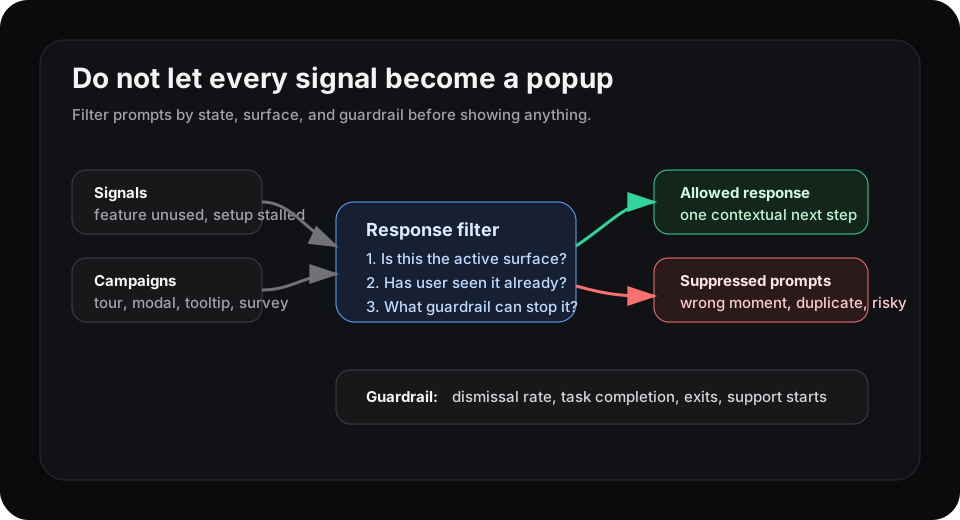
The goal is not fewer messages everywhere. The goal is one useful response at the right product moment.
In-app messages are powerful because they interrupt
Pendo’s guide to in-app messaging describes the category clearly: messages appear inside the product while the user is active. Common formats include lightboxes, tooltips, banners, surveys, and guides.
That timing is the whole advantage. It is also the risk.
A message shown during the right workflow can unblock a user. A message shown during the wrong workflow steals attention from the task the user came to finish. The format is not the strategy. A modal is just a louder interruption.
Write the suppression row before the campaign
Before adding another tooltip or modal, write one row:
| Field | Example |
|---|---|
| Product state | Trial admin opened reports twice but has no saved report |
| Surface | Empty report builder |
| Allowed response | Show one template suggestion inside the builder |
| Suppression rule | Do not show if the user dismissed it, saved a report, or saw another onboarding prompt this session |
| Guardrail | No rise in exits, dismissals, or support starts from the builder |
| Owner | Activation PM owns the response; lifecycle owner owns cross-channel conflicts |
This row forces the team to pick a lane. If the user is blocked in the report builder, show the builder-specific next step. Do not also show a feature announcement, a survey, and a trial-upgrade nudge in the same session.
Track dismissal as a product signal
Appcues’ in-app notification guide names notification fatigue as the big mistake: too many messages erode trust and teach users to ignore what the product surfaces. It also points to practical KPIs like dismissal rate, completion rate, conversion rate, and time to activate.
Dismissal is not just campaign failure. It is product feedback.
If a cohort keeps closing the same prompt, one of three things is probably true:
- the timing is wrong
- the surface is wrong
- the product response is solving the team’s problem, not the user’s problem
Do not respond by making the prompt bigger. Reduce the message to the smallest useful response, move it closer to the blocked workflow, or suppress it entirely.
Separate prompting from product adaptation
In-app messaging tools are good at targeting and delivery. They can decide who sees a banner, tooltip, checklist, or survey.
Product adaptation asks a different question: what should change in the interface for this user state?
Sometimes the right answer is a message. Sometimes it is sample data, a different default, a hidden upsell, a shorter setup path, or no interruption at all. That is why the response row matters. It keeps messaging from becoming the default fix for every product signal.
Where Rayform fits
Rayform’s angle is the response layer between product analytics and the interface. The analytics stack can say a user is stalled, returning, blocked, expanding, or ignoring prompts. Rayform can turn that trusted state into an approved runtime response, including suppression when another prompt would make the experience worse.
This is distinct from lifecycle email and in-app feedback. Those posts cover channel choice and feedback context. This one is about prompt conflict: deciding which in-product message, if any, deserves the user’s attention right now.
Related reading: empty states should move users toward activation, feature discovery is not feature adoption, and role-based onboarding needs product responses.
See how Rayform turns behavioral signals into runtime UI changes.